

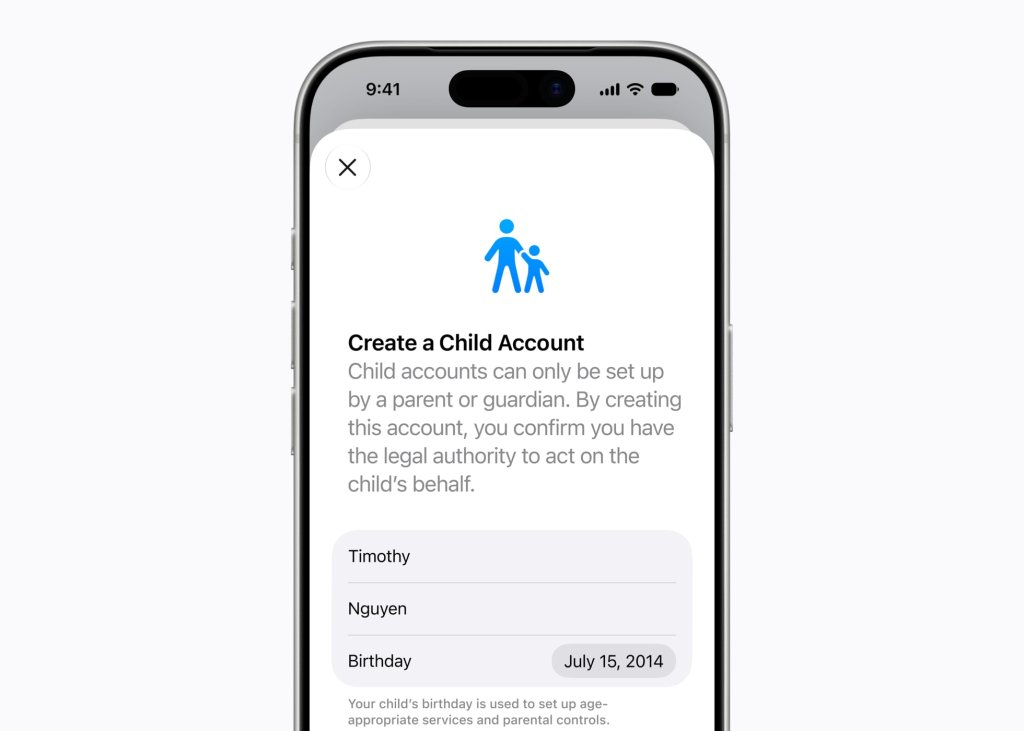
Powerful and intuitive new features that are easy to use help parents manage what their kids can see, who they can talk to, and when they have access to apps. By setting up a child account, parents can immediately enable age-appropriate protections across the system, and with Setup Assistant, parents can choose exactly which apps to make available and stay in control of what gets added over time.
With communication safety features, parents can demand approval for each new contact their kids connect with and enable automatic interventions if explicit or violent content is being shared.
New tools aimed at building healthier screen time habits make it easy to set daily total time allowances across Entertainment, Games, and Social Media apps, with a daily time allowance recommendation based on guidance from leading clinical and child development experts that gives parents a helpful starting point.
Schedules let parents manage which apps their children have access to at different points in the day, and Screen Time has been redesigned to be more intuitive for parents, offering an at-a-glance view of their kids’ average device usage and top apps.
Older Models
Apple’s parental controls (integrated directly into the OS under Screen Time) are available on older models. As long as your older device can support a relatively modern iOS/iPadOS version (generally iOS 15 or newer), you can access the core parental control features. iOS 15 is supported on all iPhone models from the iPhone 6s through the iPhone 13 series.
To help parents stay informed and learn more, Apple has launched a child safety website that features the newest tools, helpful resources, and answers to common questions — like how to get started.
More About Child Accounts
A Child Account is required for children under 13 and available for children up to 18, to help parents ensure their kids have age-appropriate experiences
- Time Allowances screen with the prompt to set how long a child can use apps and websites within various categories, including Entertainment, Games, and Social Media.
- Select which categories of apps and websites are allowed during a specific time window labeled “School” and noted as 8:30 a.m. to 3 p.m.
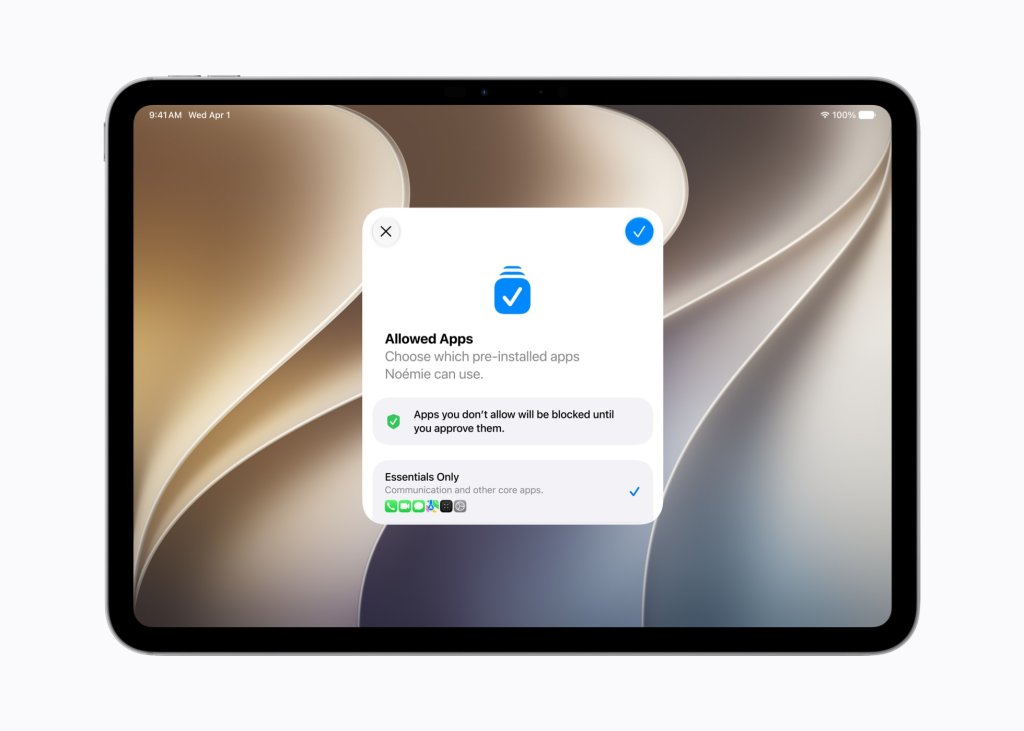
“Allowed Apps” and prompts the user to choose which pre-installed apps a child can use.
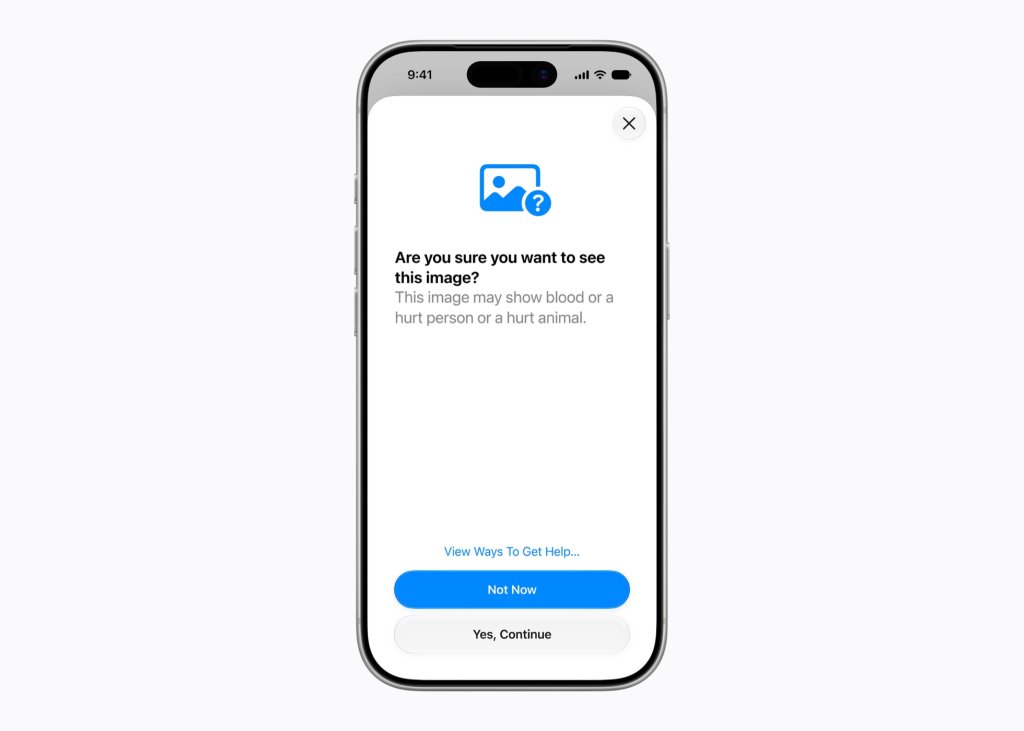
The Communication Safety screen asks “Are you sure you want to see this image? This image may show blood or a hurt person or a hurt animal.” Giving parents control over disturbing images.
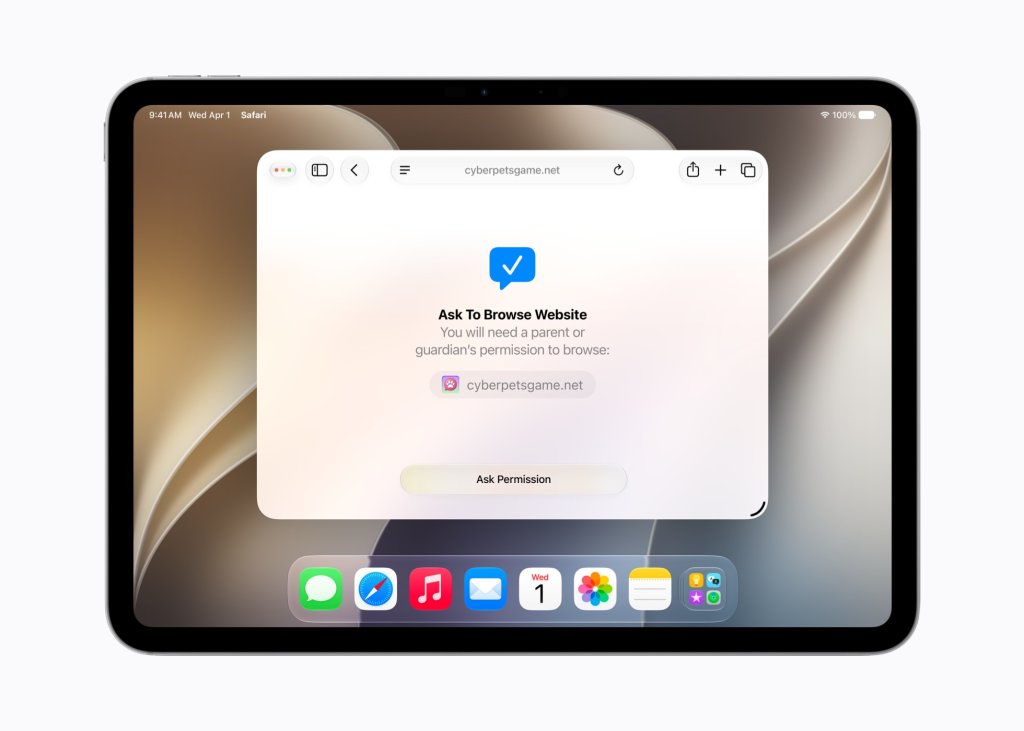
Ask to Browse prompt that says “You will need a parent or guardian’s permission to browse” above a website.
More About Parental Control Apps
Aura Parental Controls is the best overall app for iPhones, featuring a quick setup, strict content filtering, and screen time management.
For monitoring that is best for social media, teens and preventing cyberbullying Bark is a great choice.





Leave a Reply